Precise fit and passivity: the bar and its superstructure fit precisely together. DentalCAD 3.3 Chemnitz provides various parameters for dividing the structure, allowing users to make refined adjustments and improve passivity.
Strength and aesthetics combined: designing the bar as part of the split denture workflow helps to reinforce and stabilise the restoration while preserving the aesthetic advantages of zirconia and porcelain. Combining the superstructure with a bar adds stability and passive fit, helping to reduce stress on the zirconia and porcelain. Because users can control the parameters for both components within the same workflow, they can fine-tune the design as needed.
Reliable aesthetics with a wide range of materials: designing the bar as part of the split denture workflow helps to reinforce and stabilise the structure, without compromising aesthetics.
Flexible material options: the split denture workflow enables users to work with a wide range of materials, including resin composites, ceramic composites and zirconia. The same is true for the substructure, which can be made of metal, such as titanium, or other materials, such as PEEK in metal-free restorations.
Suitable for existing restorations
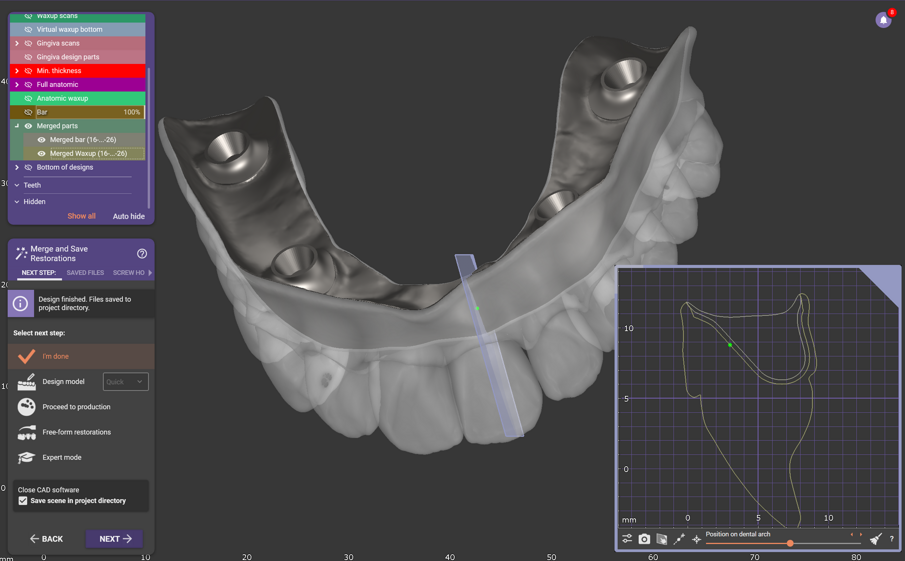
The DentalCAD split denture workflow can also be used to reinforce existing restorations. Users can import older restorations into the software and use the segmentation process to divide them into two parts (Fig. 9).
My personal tips
I encourage users to try the new split denture workflow in DentalCAD because it is very modern and cutting-edge. It offers many advantages: not only can it be applied to implant-supported full-arch restorations, but it also improves the stability of restorations by reinforcing them without compromising aesthetics.
An exocad wiki page on using the split denture workflow in the Bar Module explains every workflow step and parameter in detail. I highly recommend that users take a look. Users can access the page directly in the software by clicking the question mark icon in the wizard in the bar design step. Users can access many exocad resources to support their use of DentalCAD, including the exocad wiki and YouTube channel and personalised training.
More information about exocad's DentalCad 3.3 Chemnitz can be found here.
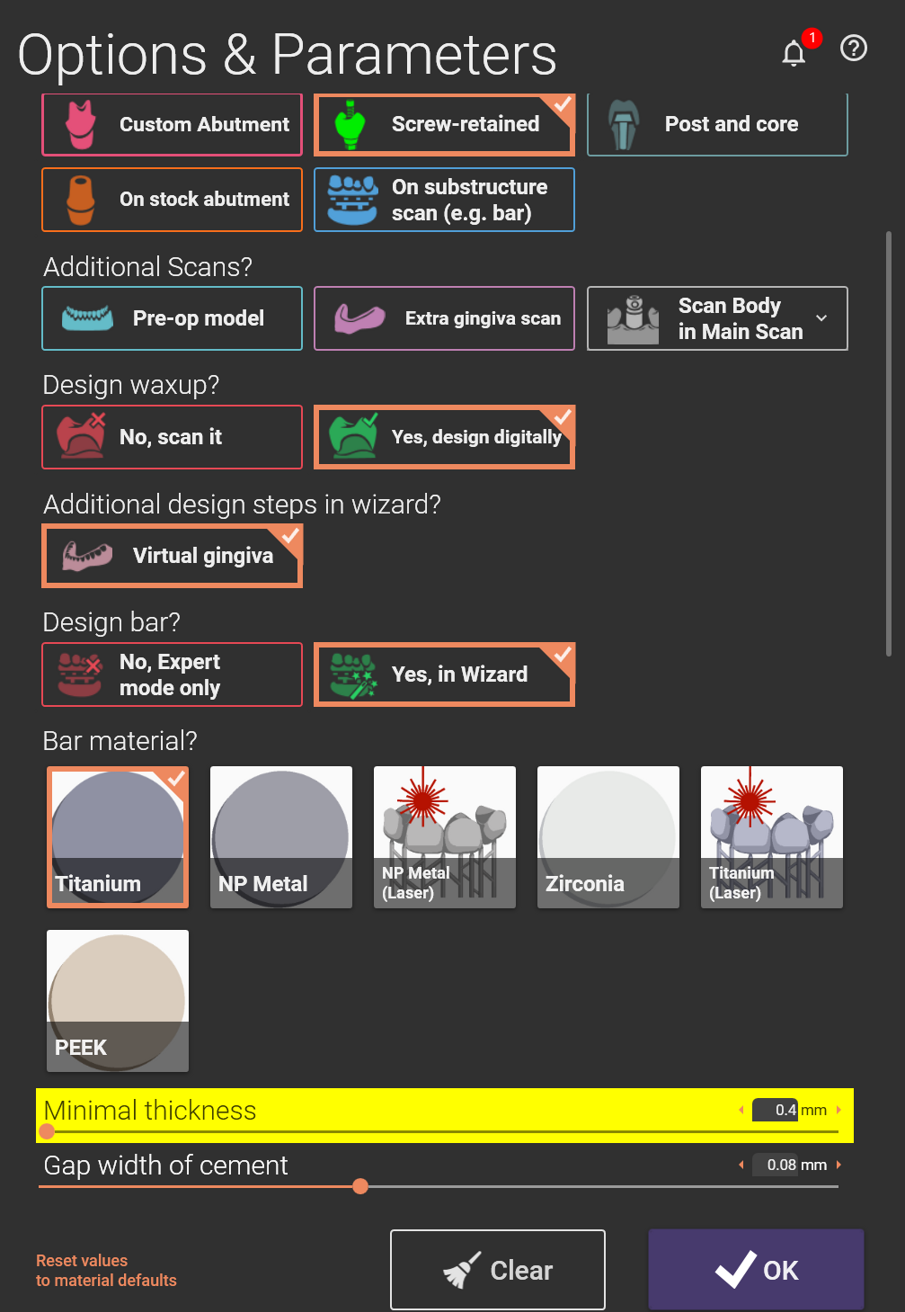
Fig. 1: “Design bar?” option in DentalDB.
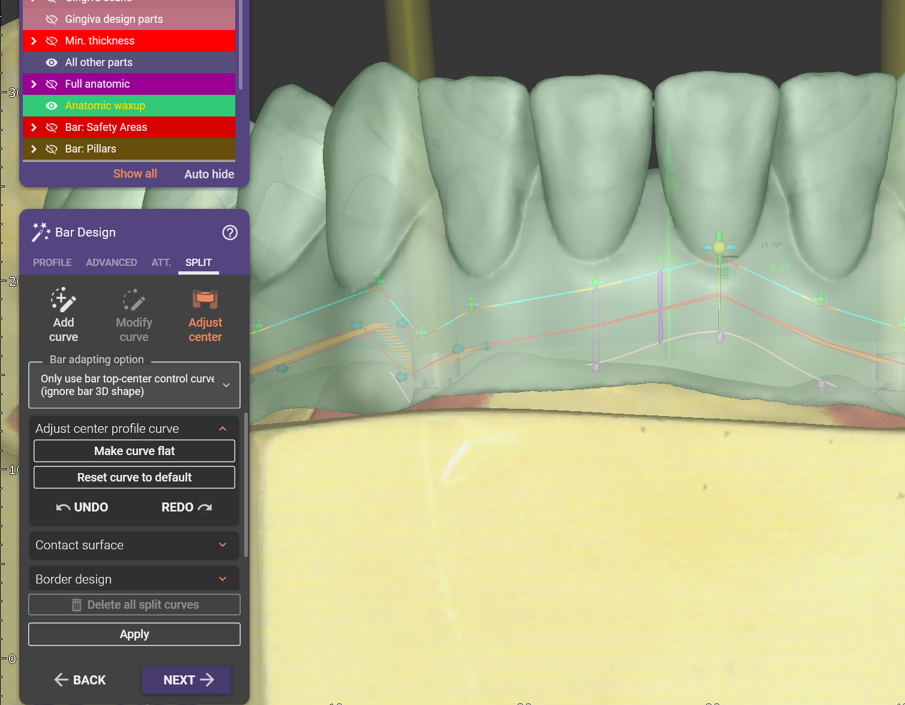
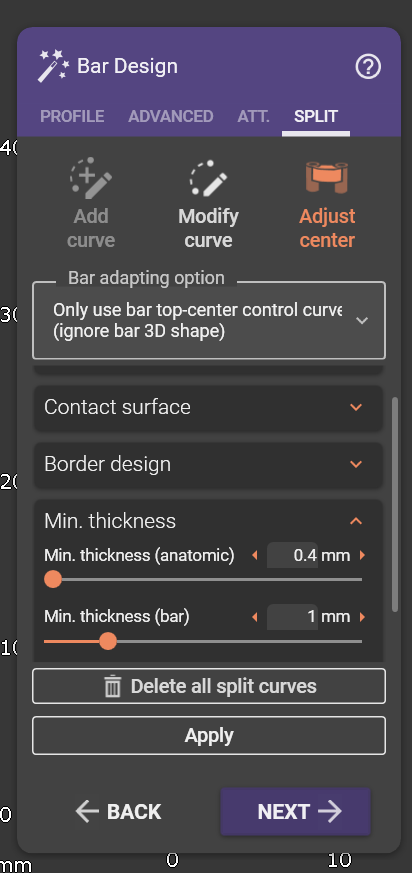
Fig. 2: “Split” tab with different options to adjust the bar.
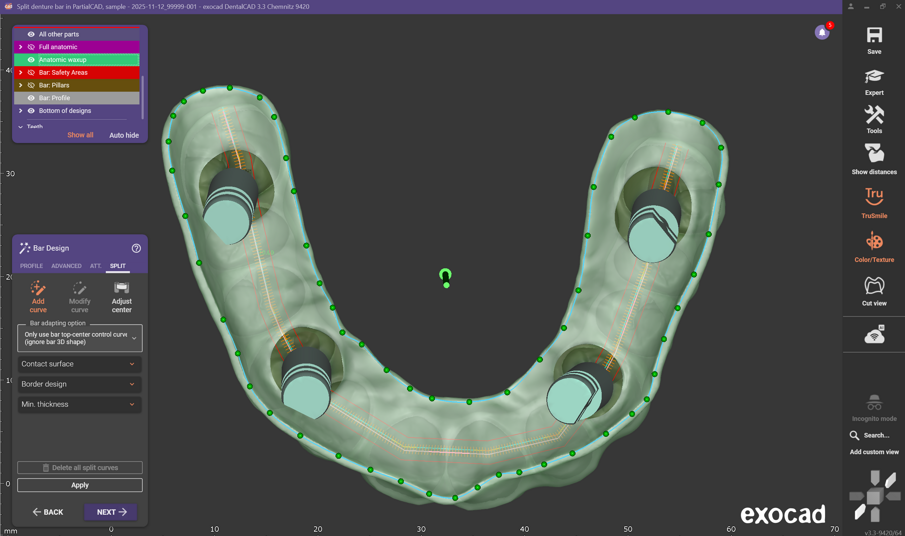
Fig. 3: Add/modify split curve.
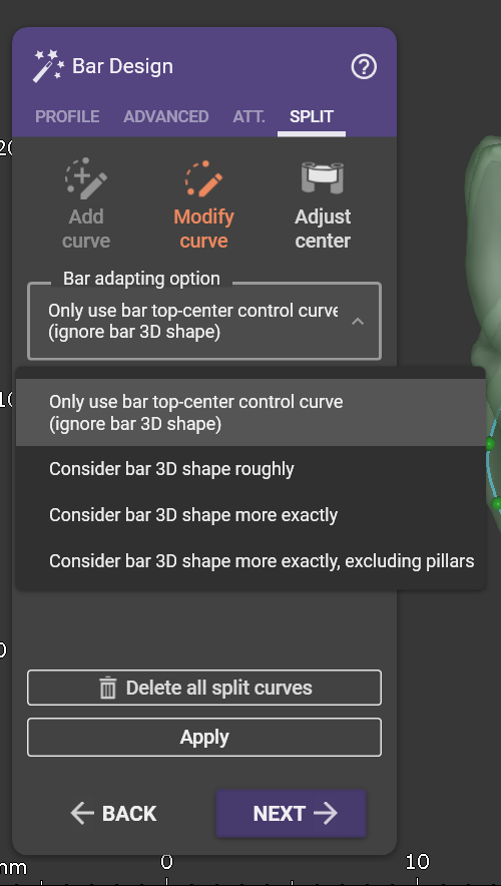
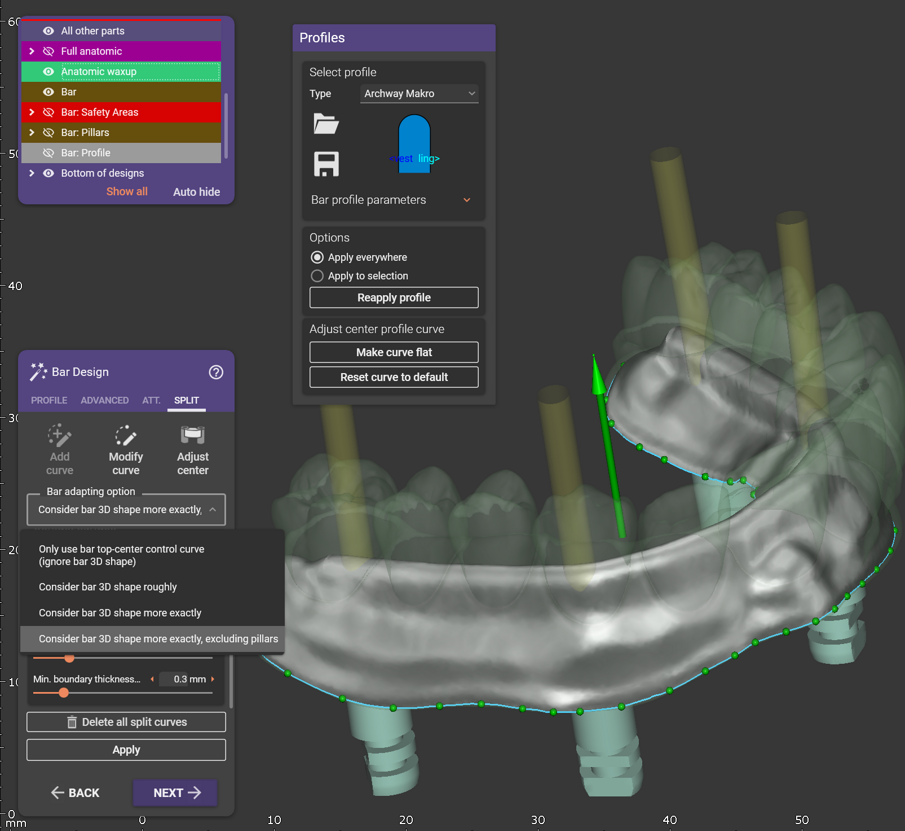
Fig. 4: Bar adapting options.
Fig. 5: Control of the different parameters that affect the shape and fit.
Fig. 6: Preview how the software separates the bar from the suprastructure depending on the selected option.
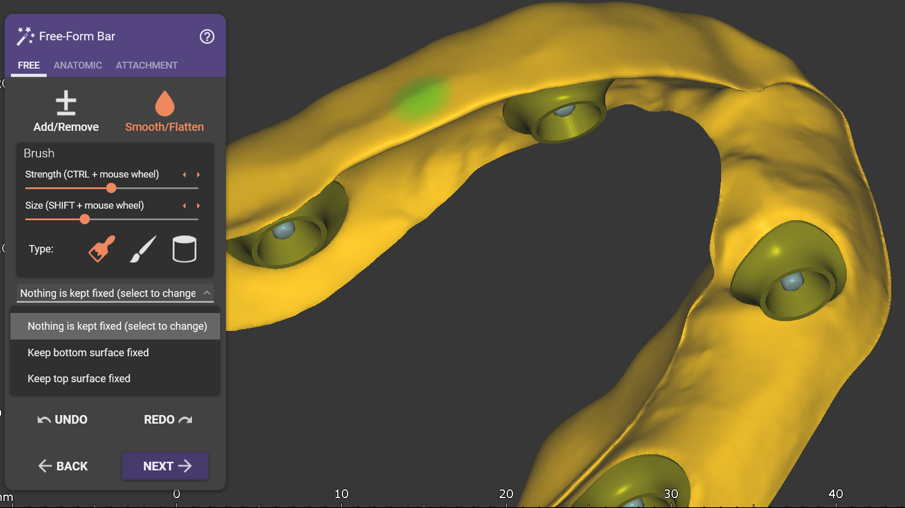
Fig. 7: Free-forming the bar makes it possible to keep selected surfaces fixed.
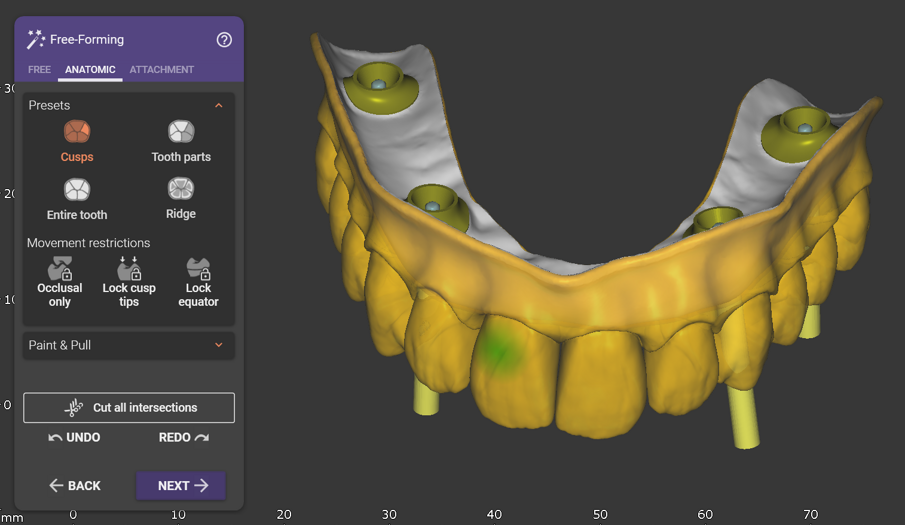
Fig. 8: Free-forming the suprastructure.
Fig. 9: Bar and suprastructure merged as two individual parts.



 Brazil / Brasil
 Canada / Canada
 Latin America / Latinoamérica
 USA / USA
 Austria / Österreich
 Bosnia and Herzegovina / Босна и Херцеговина
 Bulgaria / България
 Croatia / Hrvatska
 Czech Republic & Slovakia / Česká republika & Slovensko
 France / France
 Germany / Deutschland
 Greece / ΕΛΛΑΔΑ
 Hungary / Hungary
 Italy / Italia
 Netherlands / Nederland
 Nordic / Nordic
 Poland / Polska
 Portugal / Portugal
 Romania & Moldova / România & Moldova
 Slovenia / Slovenija
 Serbia & Montenegro / Србија и Црна Гора
 Spain / España
 Switzerland / Schweiz
 Turkey / Türkiye
 UK & Ireland / UK & Ireland
 China / 中国
 India / भारत गणराज्य
 Pakistan / Pākistān
 Vietnam / Việt Nam
 ASEAN / ASEAN
 Israel / מְדִינַת יִשְׂרָאֵל
 Algeria, Morocco & Tunisia / الجزائر والمغرب وتونس
 Middle East / Middle East

 Dr. Mona PatelRegister now1CELive webinar

 Prof. Moritz Kebschull, Cat EdneyRegister now1CELive webinar
 Dr. Jesper Hatt DDSRegister now1CELive webinar
 Dr. med. dent. Henrik-Christian Carl HollayRegister now1CE










To post a reply please login or register